How Instantly Photos works
A practical guide — not marketing talk. Here's exactly how to create an album, share it, let guests find their photos by selfie, and everything else you need to know.
Step 1Create an album
Go to your dashboard, click "New Event", give it a name, and hit Create. That's it.
Create an album
Go to your dashboard, click "New Event", give it a name, and hit Create. That's it.
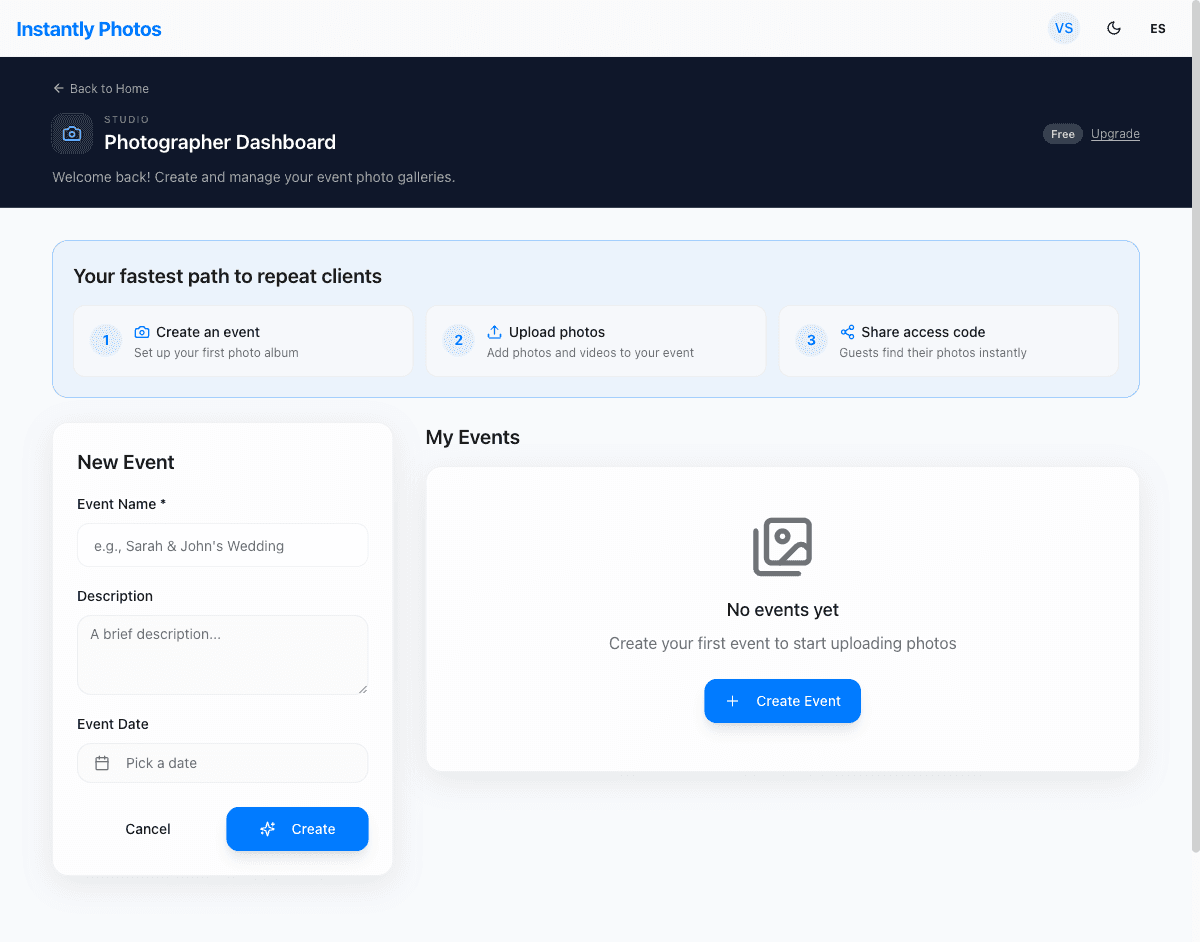
Once you click Create, you're taken straight to the album admin page. From there you can upload photos, customize settings, and grab the QR code.
Every album gets a unique 6-character access code (like TQ8J9L) that guests use to enter. This is generated automatically.
Step 2Upload your photos
Drag and drop your entire shoot. Photos are resized automatically — no prep work needed.
Upload your photos
Drag and drop your entire shoot. Photos are resized automatically — no prep work needed.

Drag and drop Drag and drop files from your computer, or click the upload area to browse. You can select hundreds of photos at once.
Photos are automatically resized on your device before uploading (default: 3000px on the free plan). You don't need to resize, rename, or organize anything. Just drop the whole shoot.
After upload, two things happen automatically:
- Thumbnails are generated for fast gallery loading
- AI face indexing runs on every photo — this is what powers selfie search later
You'll see a progress modal during upload. Keep the tab open until it finishes.

Three ways guests can enter your album:
Scan the QR code
Display it on a screen, print it, put it on a table card — guests scan with their phone camera
Type the access code
Guests go to instantlyphotos.app/find-my-photos and type the 6-character code
Click the direct link
Copy the gallery link and send it via text, email, or WhatsApp
Guests don't need an account, an app, or a login. The code gets them in. Works on any phone, any browser.
The magicHow selfie search works
Guests take a selfie, AI finds every photo they appear in. Under 2 seconds.
How selfie search works
Guests take a selfie, AI finds every photo they appear in. Under 2 seconds.
Here's the exact flow from a guest's perspective:
Tap "Find Your Photos"
The blue button at the top of every album. Opens the selfie camera.
Take a selfie (or upload a photo)
The browser asks for camera permission. Guest takes a quick selfie — no filters needed, just a clear shot of their face.
AI matches in ~2 seconds
Face recognition compares the selfie against every indexed face in the album. Matching photos are shown instantly.
Browse and download
Only the guest's photos are shown. They can tap "Show All" to go back to the full album anytime.
What if the search misses someone?
Face recognition works best with clear, well-lit photos. Small faces in crowd shots or heavy shadows can reduce accuracy. If a guest can't find themselves, they can still browse the full album manually. Tip: good lighting at the event means better face matching.
Team shootingWant others to add photos to your album?
Flip one switch and your album becomes collaborative. Second shooters, assistants, or photo booth operators can upload to the same album.
Want others to add photos to your album?
Flip one switch and your album becomes collaborative. Second shooters, assistants, or photo booth operators can upload to the same album.

How to enable it:
- Open your album's admin page
- Toggle "Make Album Collaborative" to on
- An invite link appears — copy and send it to your collaborators
- They click the link, sign in, and can start uploading immediately
What collaborators can do:
✓ Upload their own photos and videos
✓ Delete photos they uploaded
✓ View the album in admin mode
✕ Edit event name or settings
✕ Delete other people's photos
✕ Turn collaboration off
Getting photos outHow guests download their photos
You control whether guests can download, and at what quality.
How guests download their photos
You control whether guests can download, and at what quality.
In your album settings, there's a "Enable/Disable Downloads" dropdown with three options:
High Res
Guests download the original quality file. Best for clients who want print-ready photos.
Low Res
Downloads are capped at 1920px. Good for social media sharing while protecting your full-resolution originals.
Disabled
No download button shown. Guests can view and search, but not save. Use this if you want to sell prints separately.
On phone: tapping download opens the share sheet (iOS) or saves to downloads (Android). On desktop, it triggers a browser download. Guests can also select multiple photos and download them as a batch.
Pro planWhat you unlock with Pro
A breakdown of the features that scale with your plan — from branding to unlimited storage.
What you unlock with Pro
A breakdown of the features that scale with your plan — from branding to unlimited storage.
Custom Branding
Your studio name replaces "Instantly Photos" in the navigation. Choose from five color schemes: Classic, Warm Ivory, Midnight, Sage Garden, or Rose Gold. Guests also get a branded gallery URL (yourname.instantlyphotos.app). Available on Growth and Pro plans.
Upload Quality
Free plan: photos resized to 3000px web-optimized. Studio/Growth: 4000px high-res. Pro: original quality, up to 15 MB per file — ideal for print-ready deliverables.
Unlimited Photos Per Album
The free and paid plans below Pro have a 1,000 photo-per-album limit. Pro removes that cap entirely — upload as many photos as your event needs.
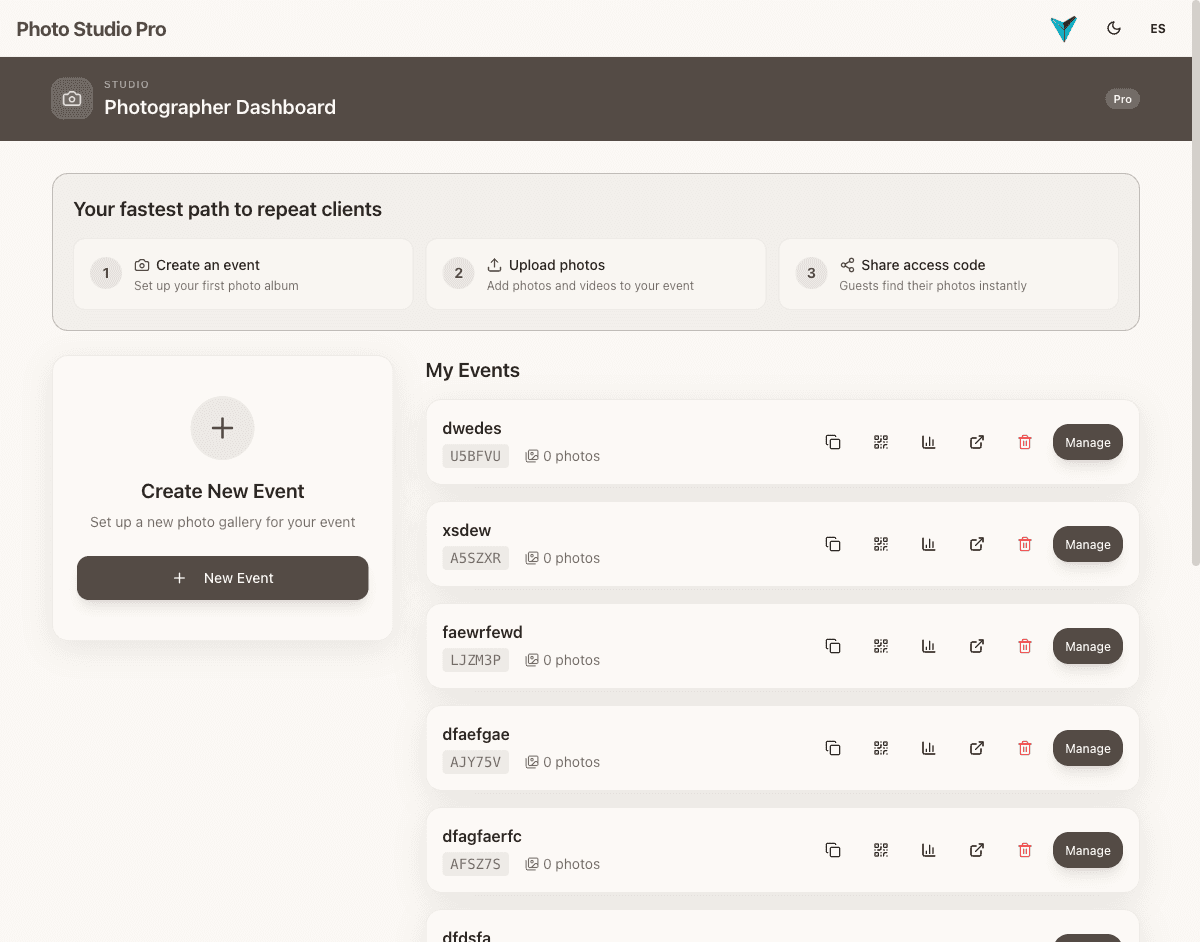
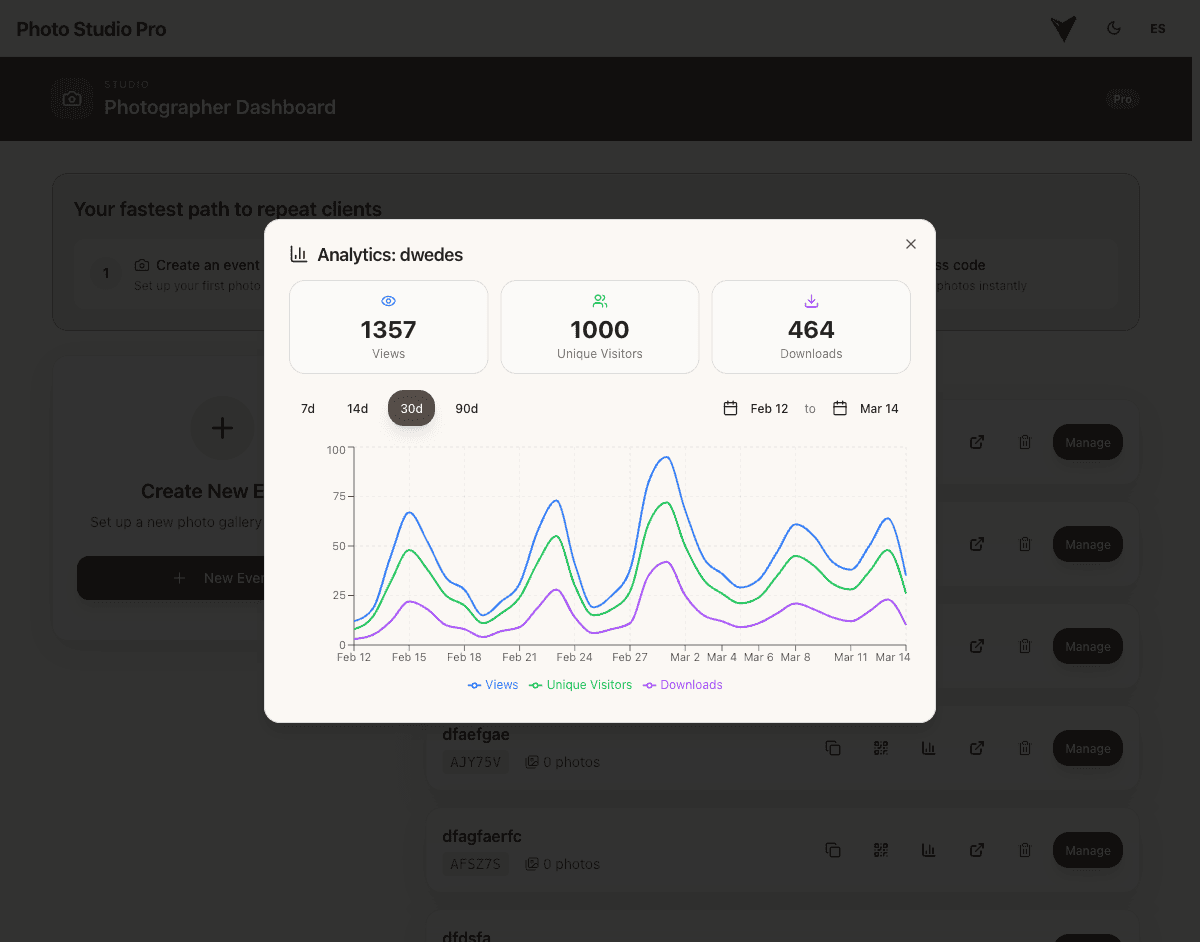
Traffic Analytics
Pro includes a dashboard showing views, unique visitors, and downloads per album. Monthly performance reports help you understand which events get the most engagement.
Video Duration
Free: 60 seconds per video. Studio: 3 minutes. Growth: 5 minutes. Pro: up to 10 minutes per video.
Google Drive Import
Connect a Google Drive folder and photos sync directly into your album — no downloading, no re-uploading. Photographers already shooting into Drive save hours on every event. Available on Growth and Pro plans.
Good to knowWhat happens when you delete photos
Deletion is permanent. There's no trash bin or undo.
What happens when you delete photos
Deletion is permanent. There's no trash bin or undo.
On the admin page, check the boxes on photos you want to remove, then click delete. You can select up to 10 at a time.
When you delete a photo, everything related to it is removed:
- The photo file itself (original + thumbnail)
- All face data associated with that photo
- The photo won't appear in selfie search results anymore
Collaborator permissions
If your album is collaborative, each person can only delete photos they uploaded. The album owner can delete any photo. If you try to delete someone else's photo as a collaborator, you'll see a permission error.
Things people ask
Quick answers to the stuff that actually trips people up.
Can guests upload their own photos?
How many photos can I upload to one album?
How many albums can I create?
Do guests need to create an account?
How does the selfie search actually work?
What if selfie search can't find someone?
Can I change the photo sort order?
Can I add a cover image or logo to my album?
How long are photos stored?
Is there an app to install?
Ready to try it?
10 albums free. No credit card. Set up your first event in under 2 minutes.